Forms Download
 Funds Comparison
 Access Online Application Form
 Account Opening
 Risk Tolerance Test
 SSF/ RMF/ Thai ESG/ LTF/ Withholding Tax Certificates
 Tax Exemption Request for SSF/RMF/Thai ESG/Thai ESGX
 @ccess online
 Provident Fund (PVD)
Fund Transaction
Link Credit Card Online

Convenient... Easy: Pay for fund purchases with credit card or redeem points
Simply add an eligible Krungsri Group credit card and link it to your mutual fund account easily via @ccess Mobile or @ccess Online
- If you have multiple eligible credit cards registered under the same national ID, you can link your credit cards for both fund purchases and point redemption.
- Credit cards eligible for fund purchases: Krungsri Credit Card, Central The1 Credit Card, First Choice Credit Card, and Lotus’s Credit Card.
- Credit cards eligible for point redemption: Krungsri Credit Card and First Choice Credit Card
- Check the list of eligible funds and applicable terms and conditions here
- If a credit card has already been linked to one of your unitholder numbers, you can also link the same credit card to another mutual fund account, if needed.*
- You can use your linked credit card to purchase funds, set up scheduled transactions, or make regular investment transactions.
- Once you link your credit card via @ccess Mobile, your credit card information will also be linked to @ccess Online. You can use both channels without having to register your credit card again.
*Certain types of special mutual fund accounts may not be eligible for adding accounts for fund purchase payments and/or receiving proceeds from the fund. The funds eligible for credit card payments or point redemption are subject to the terms and conditions specified by Krungsri Asset Management.
Link Credit Card Online via @ccess Mobile
How to Link a Credit Card on @ccess Mobile
1. Go to Settings, select “Bank Accounts/Credit Card,” and choose the unitholder number you wish to use.
2. Select the account type for subscription, then tap “+” to add an account and select “Add Credit Card.”
3. Read and accept the terms and conditions of service, then tap “Next.” You will be redirected to the credit card system.
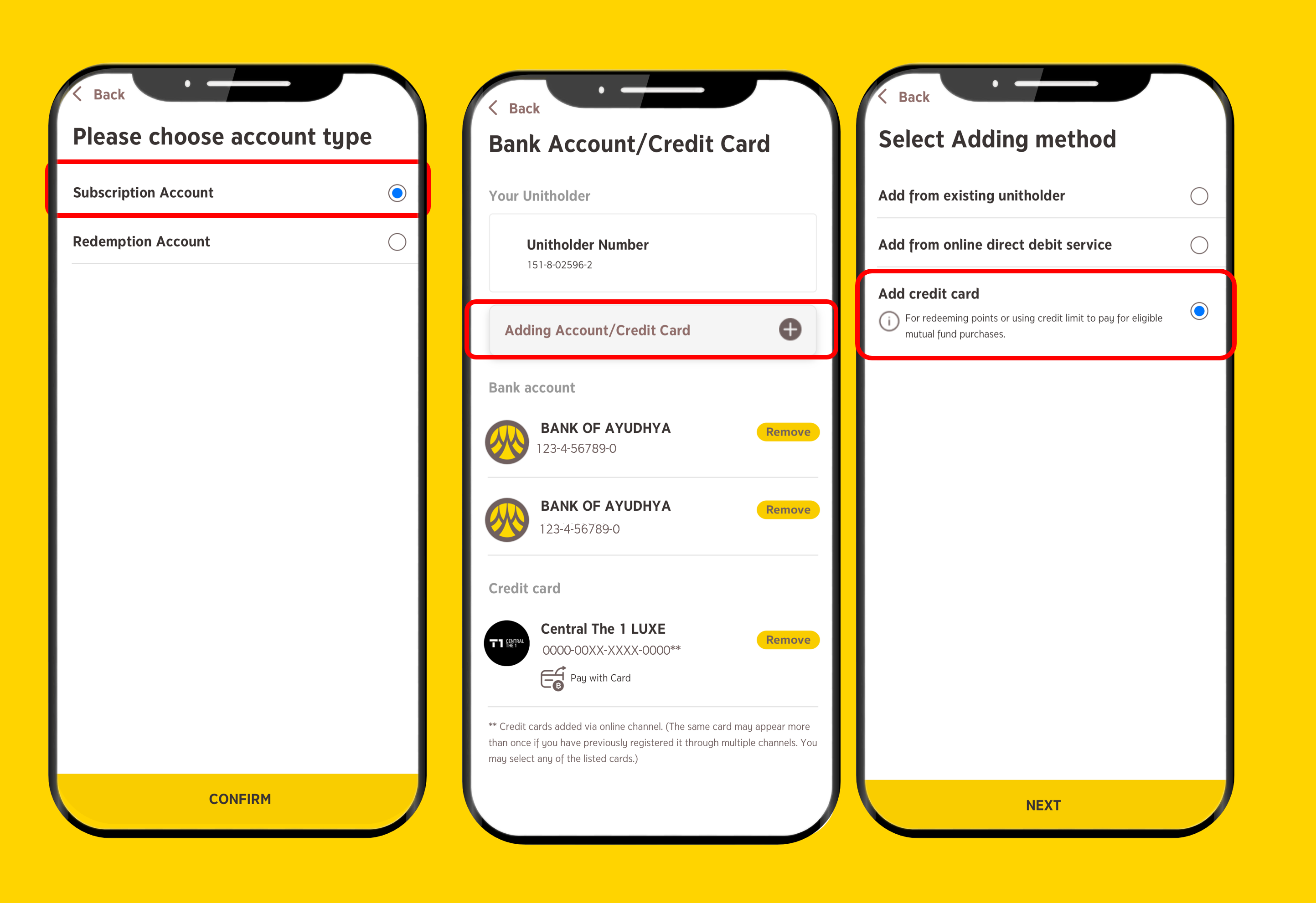
4. Enter your credit card number. The system will verify that the ID card number of the credit cardholder matches the one registered with the fund account.
5. Enter the card’s expiry date and CVV, then verify the transaction using the OTP sent to the mobile number registered with your credit card issuer.
6. The system will display the card-linking result and return you to the Linked Bank Accounts/Credit Cards page for the selected unitholder number.
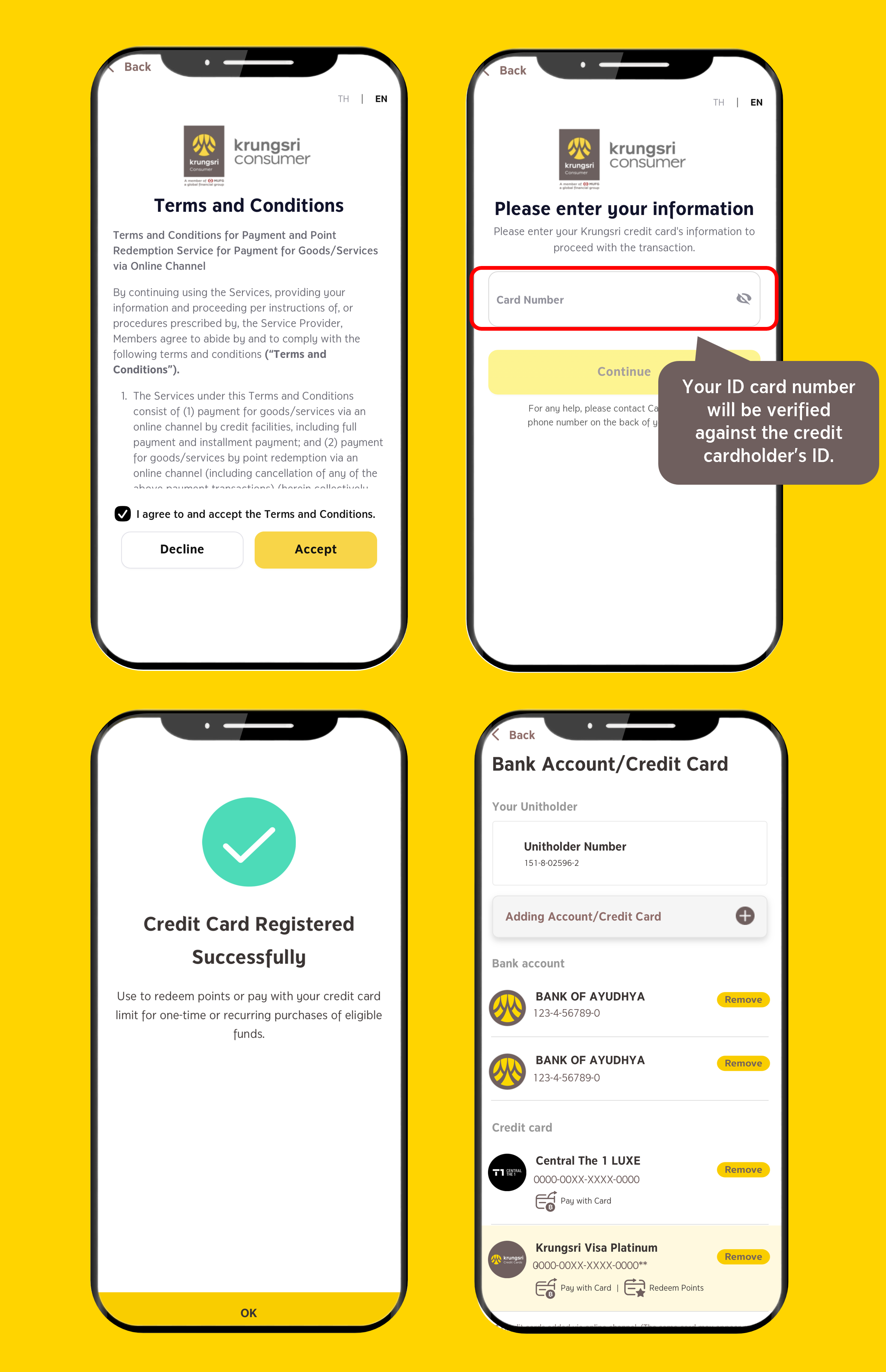
Register your credit card, scan here:

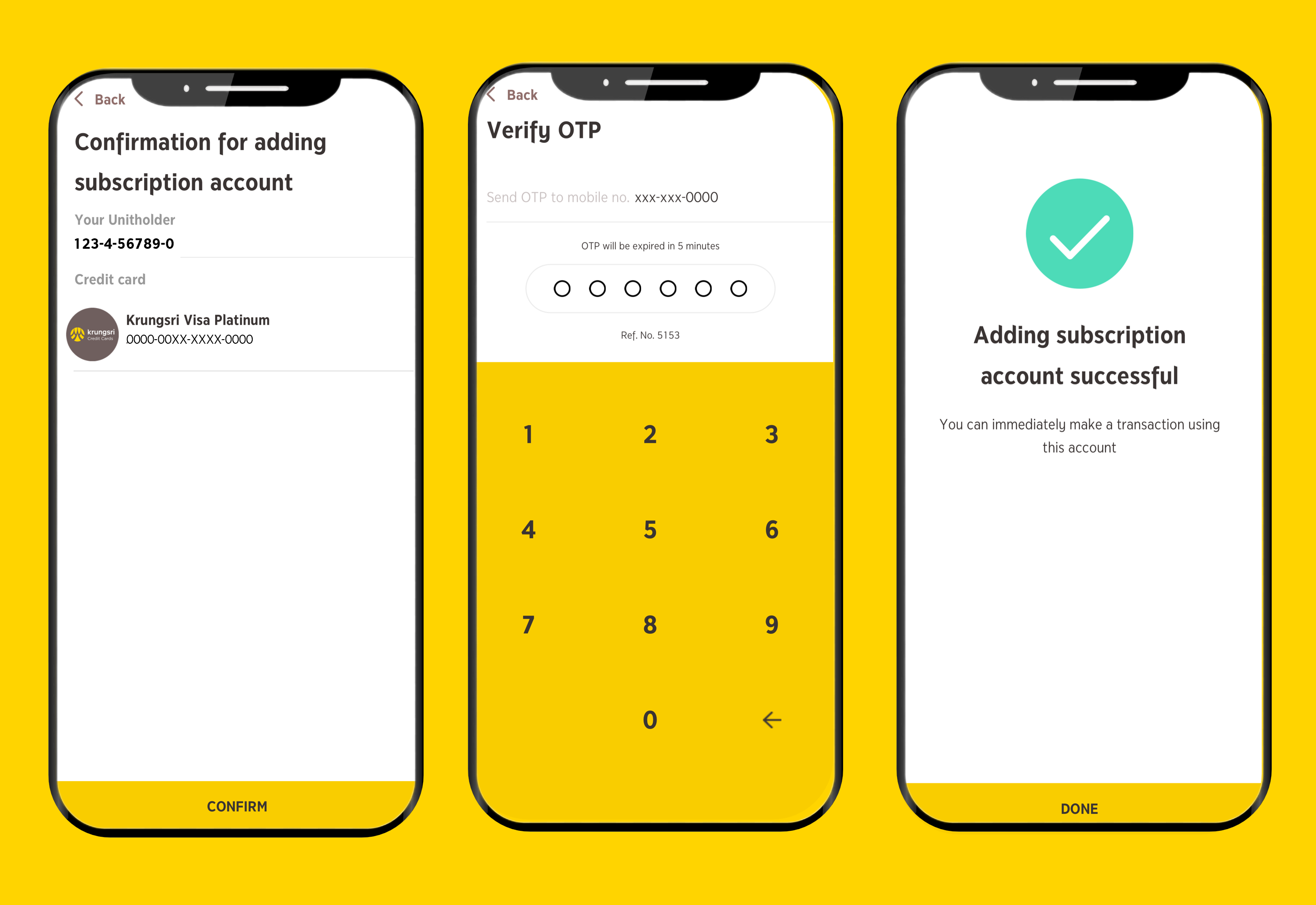
Adding Credit Card from Other Unitholder
If you already have a credit card linked to one unitholder number and would like to link the same card to another unitholder number, you can follow these steps:
1. Go to Settings and select “Bank Accounts/Credit Card.” Then, select the unitholder number you wish to use and choose the type of account you would like to add.
2. Tap “+” to add an account.
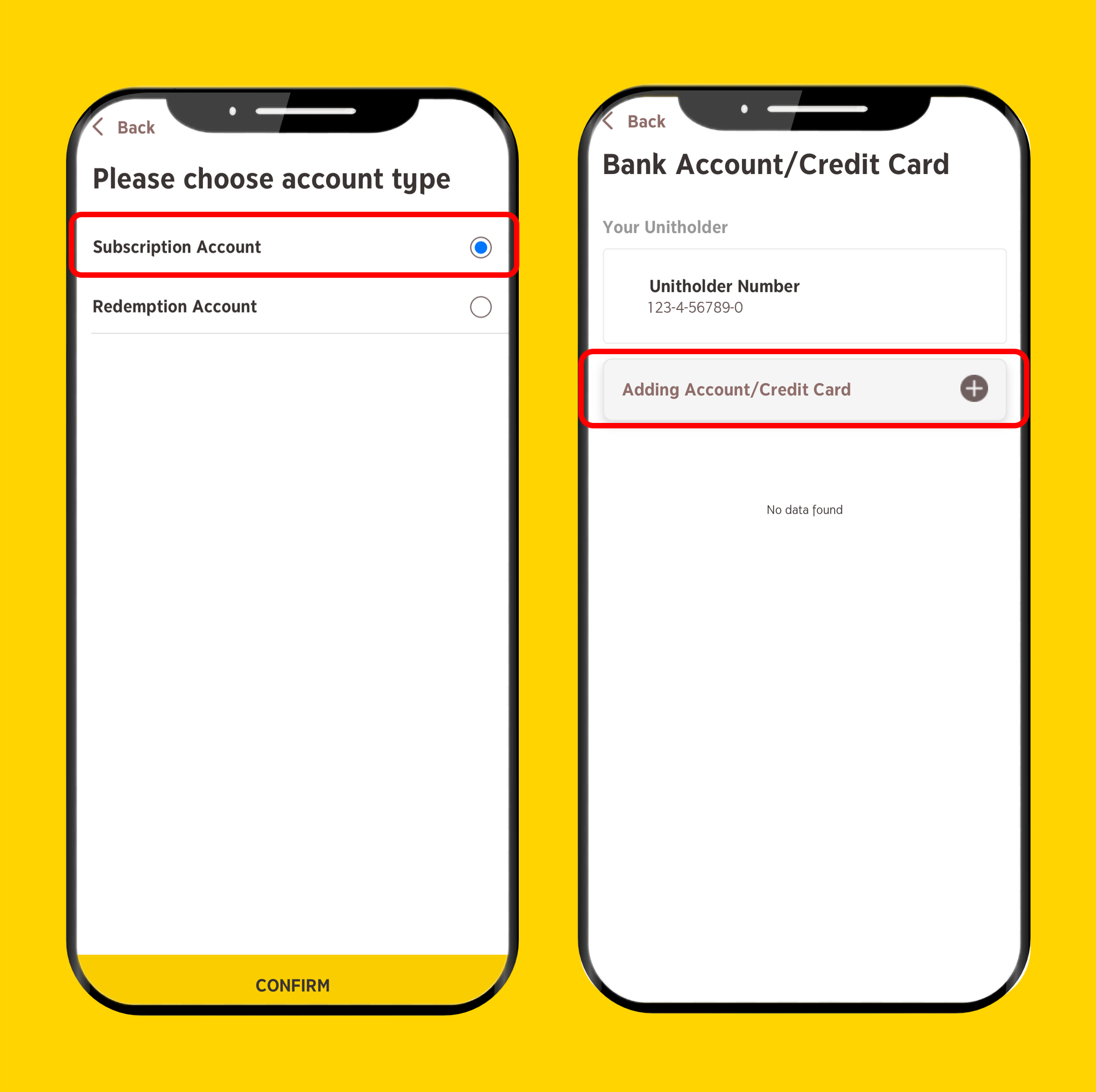
3. Select “Add from Existing Unitholder", then choose the bank account or credit card you would like to add.
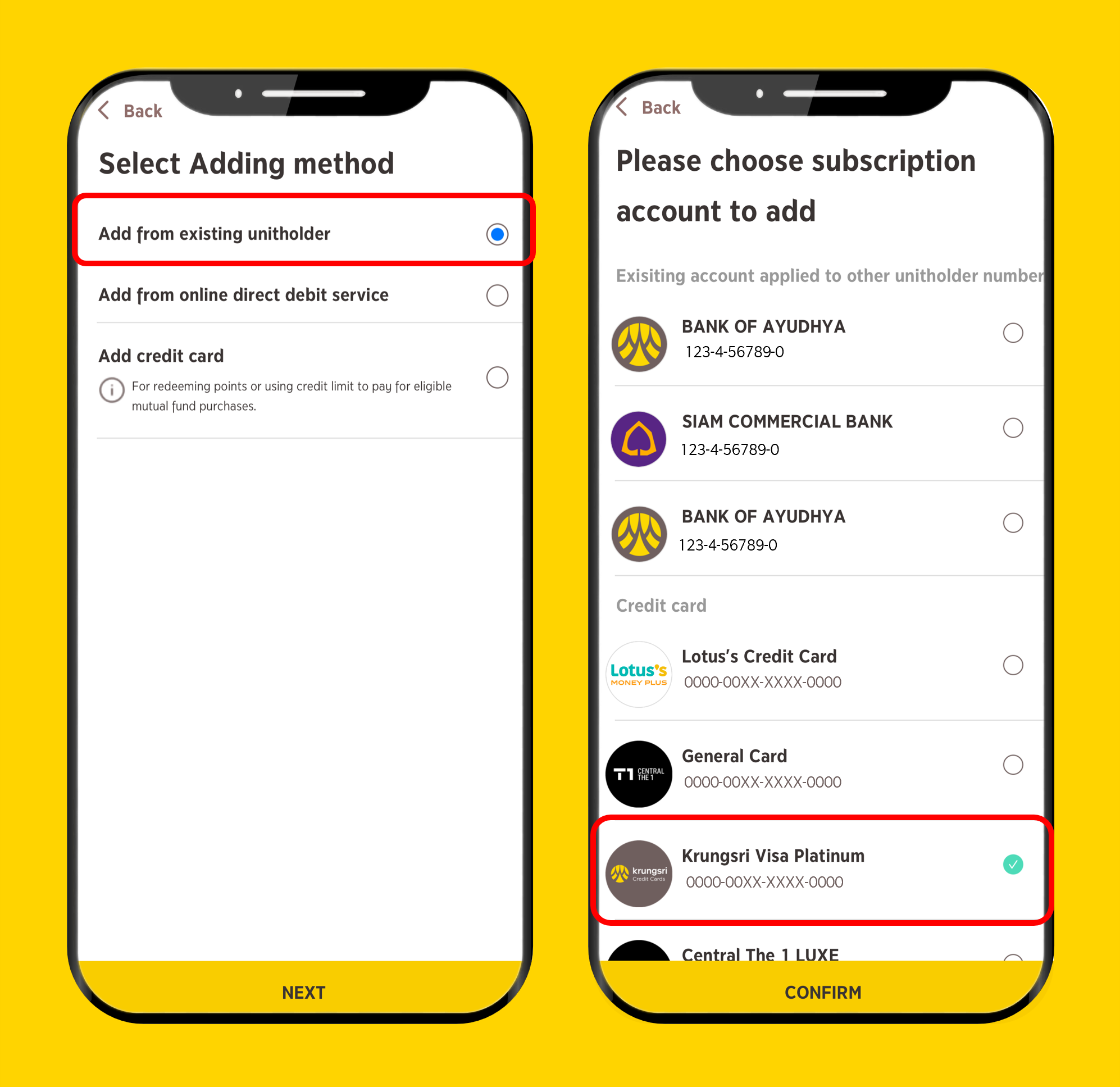
4. Review and confirm the information you wish to add, then enter the OTP to verify the transaction. The system will display the result of your account-adding request.
1. Go to Settings, select “Bank Accounts/Credit Card,” and choose the unitholder number you wish to use.
2. Select the account type for subscription, then tap “+” to add an account and select “Add Credit Card.”
3. Read and accept the terms and conditions of service, then tap “Next.” You will be redirected to the credit card system.
4. Enter your credit card number. The system will verify that the ID card number of the credit cardholder matches the one registered with the fund account.
5. Enter the card’s expiry date and CVV, then verify the transaction using the OTP sent to the mobile number registered with your credit card issuer.
6. The system will display the card-linking result and return you to the Linked Bank Accounts/Credit Cards page for the selected unitholder number.
Register your credit card, scan here:
Adding Credit Card from Other Unitholder
If you already have a credit card linked to one unitholder number and would like to link the same card to another unitholder number, you can follow these steps:
1. Go to Settings and select “Bank Accounts/Credit Card.” Then, select the unitholder number you wish to use and choose the type of account you would like to add.
2. Tap “+” to add an account.
3. Select “Add from Existing Unitholder", then choose the bank account or credit card you would like to add.
4. Review and confirm the information you wish to add, then enter the OTP to verify the transaction. The system will display the result of your account-adding request.
Link Credit Card Online via @ccess Online
How to Link a Credit Card on @ccess Online
1. Go to the “Personal Information” menu and click “Register Credit Card” tab. Then, click “Register to Credit Card.”
2. Read the terms and conditions, then click “Accept.”
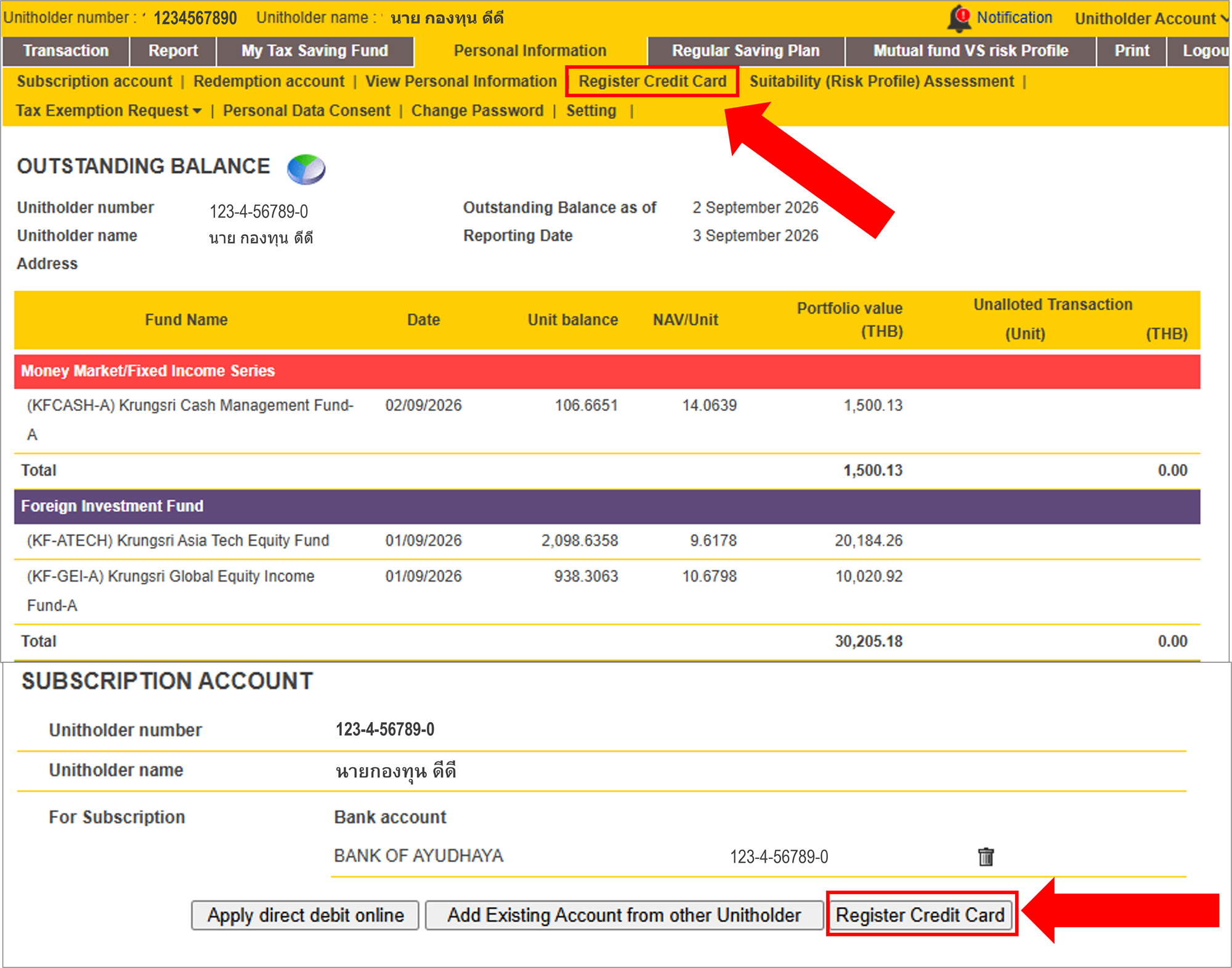
3. The system will display a screen for you to enter the credit card number you wish to register. Click “Continue” and complete the required information. Once you receive the OTP, click “Verify OTP” to verify the transaction.
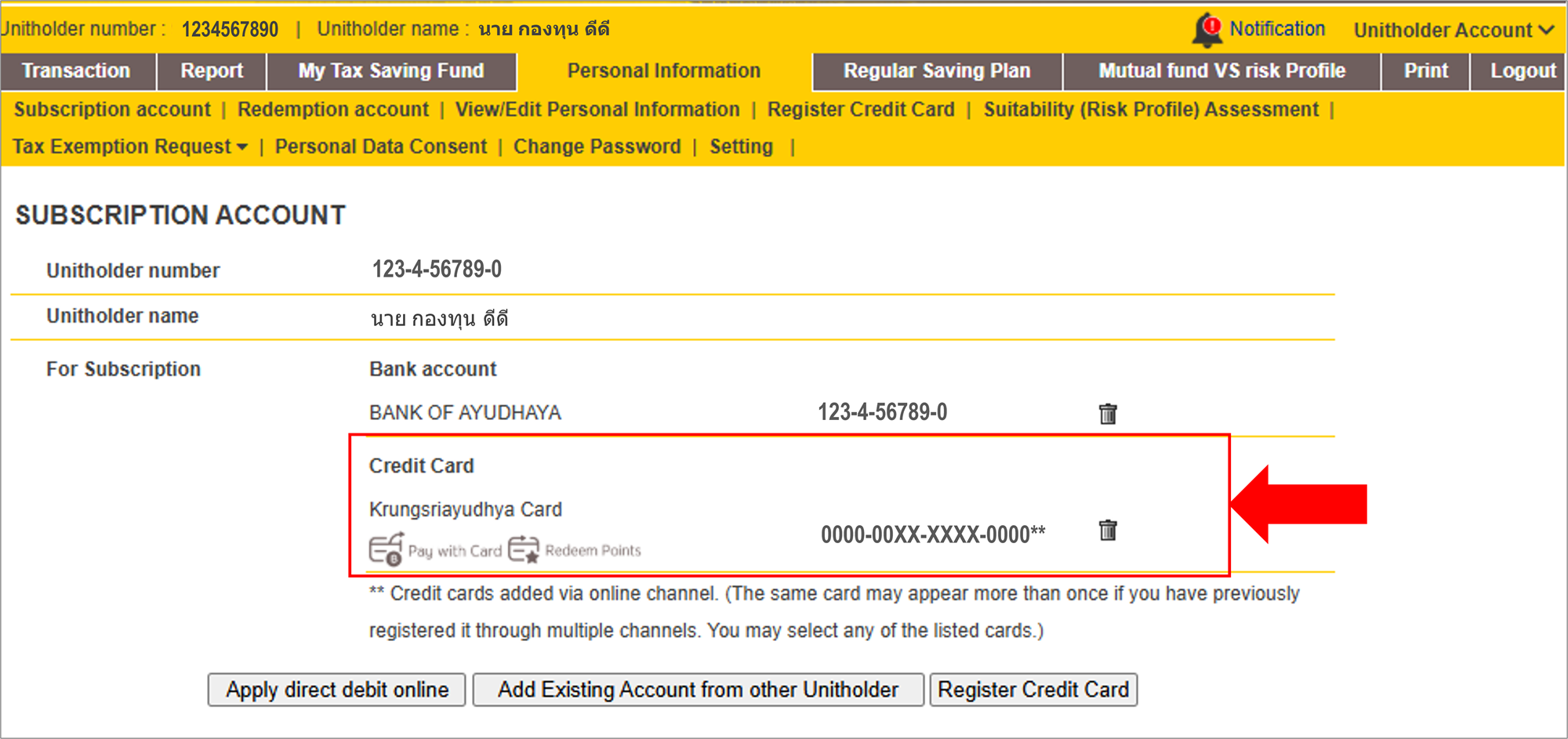
4. Once the registration is successful, the system will display the details of the credit card that has been successfully registered.
Adding Credit Card from Other Unitholder
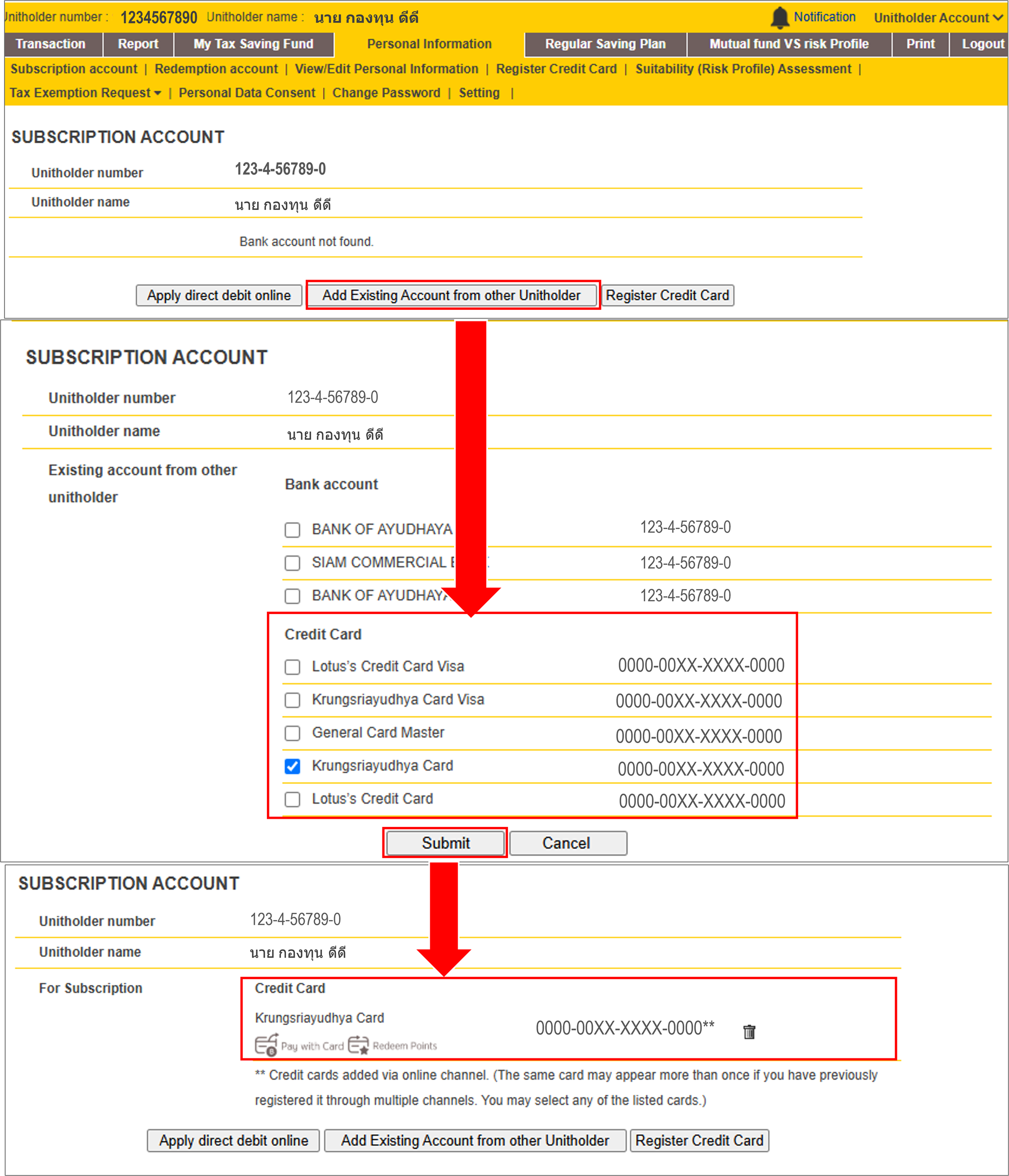
If you already have a credit card linked to one unitholder number and would like to link it to another unitholder number, you can follow these steps:
1. Go to the “Personal Information” menu, select “Subscription Account,” and click “Add Existing Account from other Unitholder.”
2. The system will display the bank accounts and credit cards linked to your other unitholder numbers that are available for selection. Choose the account you wish to use and click “Submit.” Then, confirm using your password. Once successfully added, the account or credit card will be displayed under the selected unitholder number.
1. Go to the “Personal Information” menu and click “Register Credit Card” tab. Then, click “Register to Credit Card.”
2. Read the terms and conditions, then click “Accept.”
3. The system will display a screen for you to enter the credit card number you wish to register. Click “Continue” and complete the required information. Once you receive the OTP, click “Verify OTP” to verify the transaction.
4. Once the registration is successful, the system will display the details of the credit card that has been successfully registered.
Adding Credit Card from Other Unitholder
If you already have a credit card linked to one unitholder number and would like to link it to another unitholder number, you can follow these steps:
1. Go to the “Personal Information” menu, select “Subscription Account,” and click “Add Existing Account from other Unitholder.”
2. The system will display the bank accounts and credit cards linked to your other unitholder numbers that are available for selection. Choose the account you wish to use and click “Submit.” Then, confirm using your password. Once successfully added, the account or credit card will be displayed under the selected unitholder number.
Fund Purchase with Credit Card
1. Purchasing Funds with a Credit Card on @ccess Mobile
1.1 Credit Card Payment
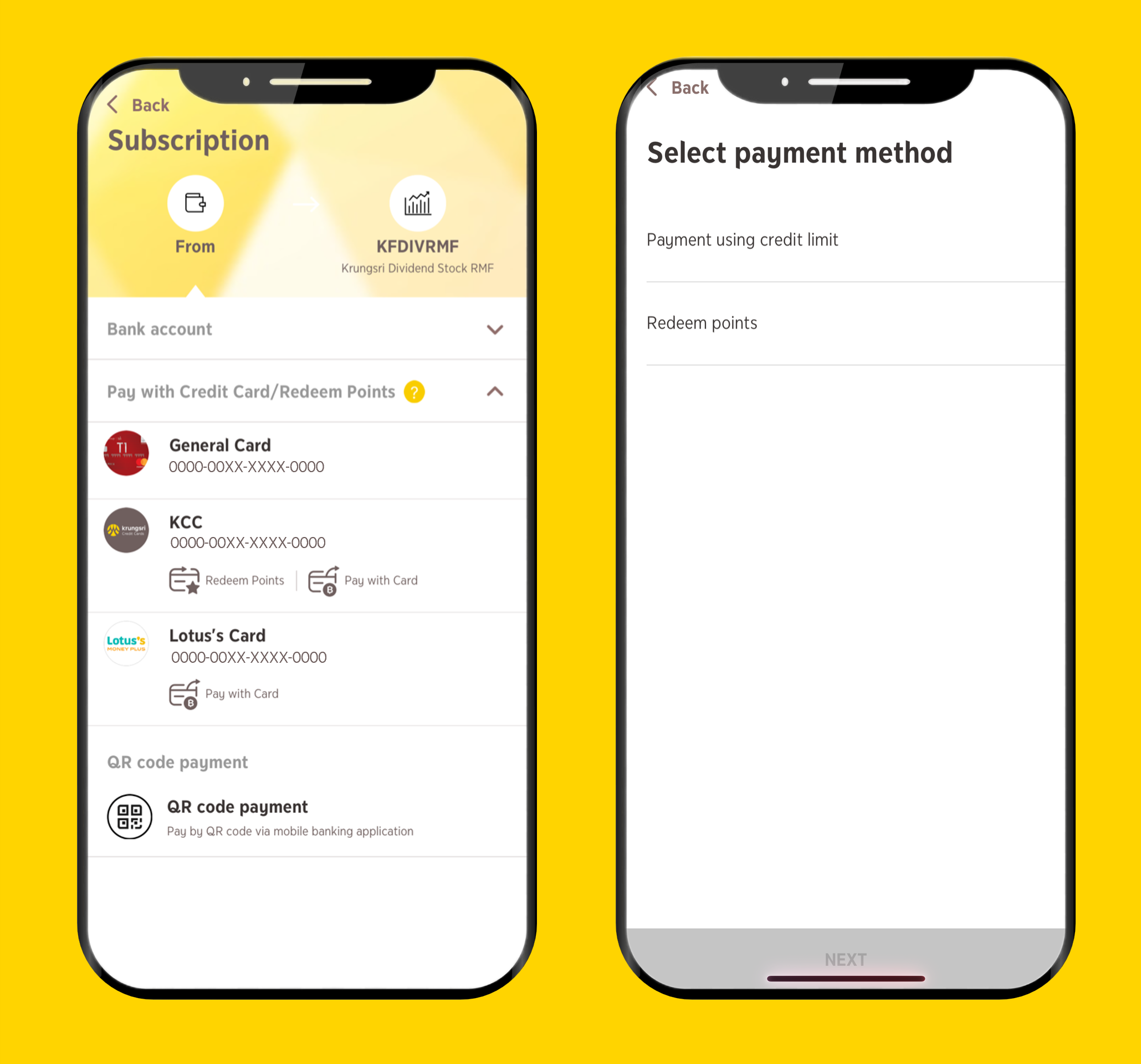
1.1.1 From the “Subscription” menu, after selecting the desired unitholder number and fund, go to “Payment Method” and select “Payment using credit limit".
*Credit card payment conditions are subject to requirements specified for each fund type.
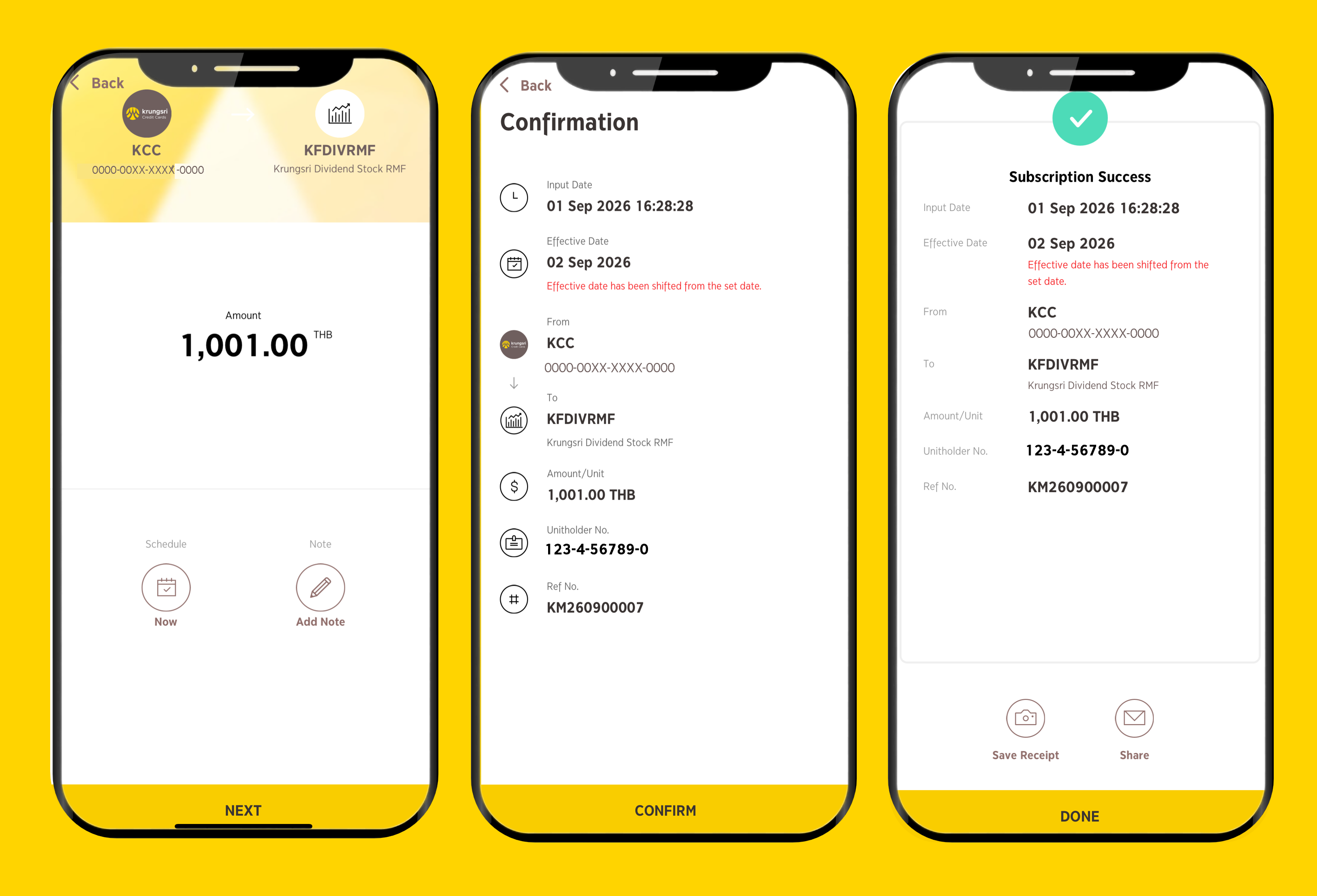
1.1.2. Enter the purchase amount. If you would like to schedule the transaction in advance, tap “Schedule”* to set the transaction date before confirming the transaction. Then, review the transaction details and confirm.
**For recurring transactions, you can set up a weekly or monthly recurring schedule and specify the period during which you would like the transactions to be made.
1.2 Points Redemption
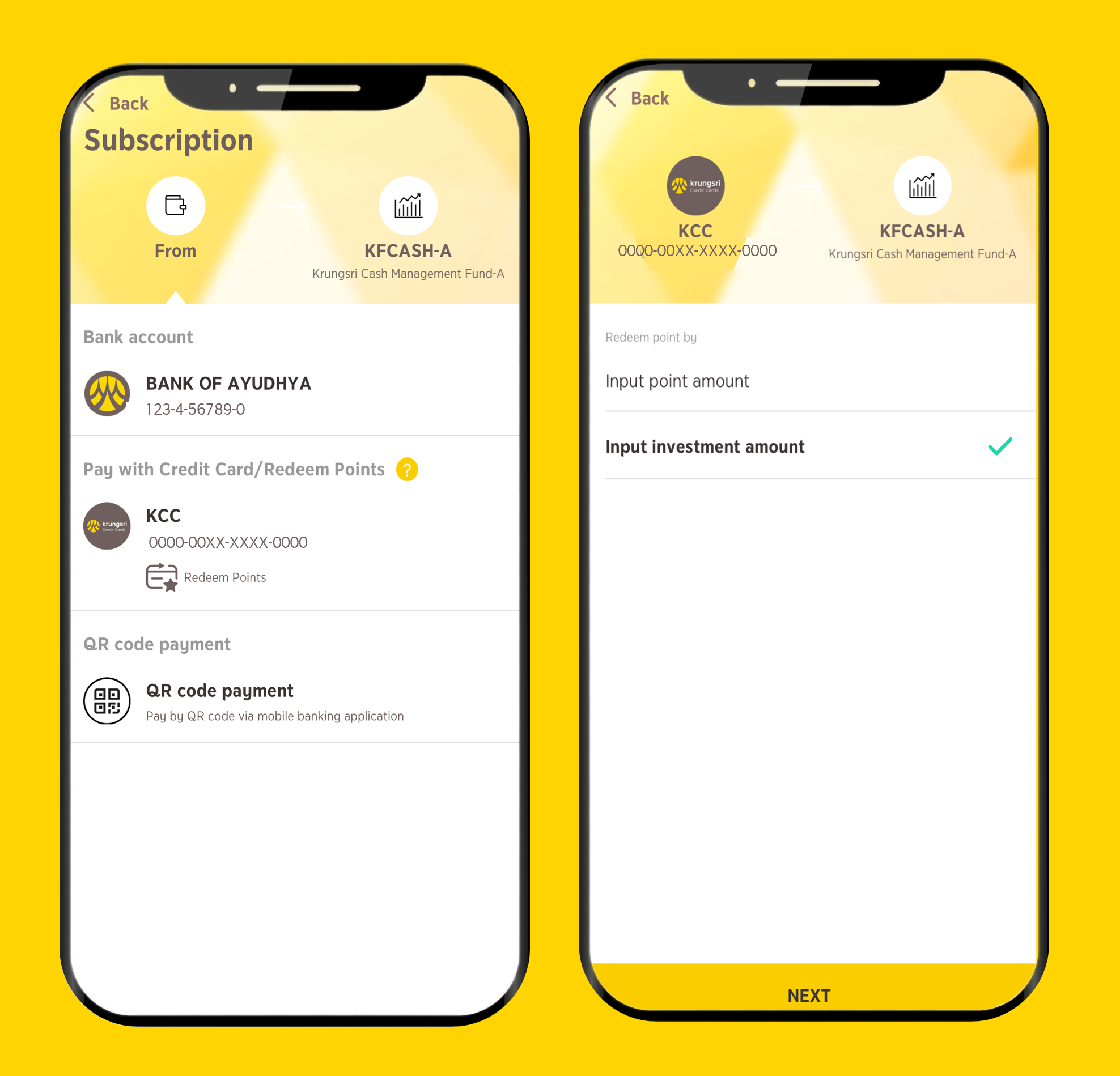
1.2.1 From the “Subscription” menu, after selecting the desired unitholder number and fund, select a credit card marked with the "Redeem Points" icon as the payment account.
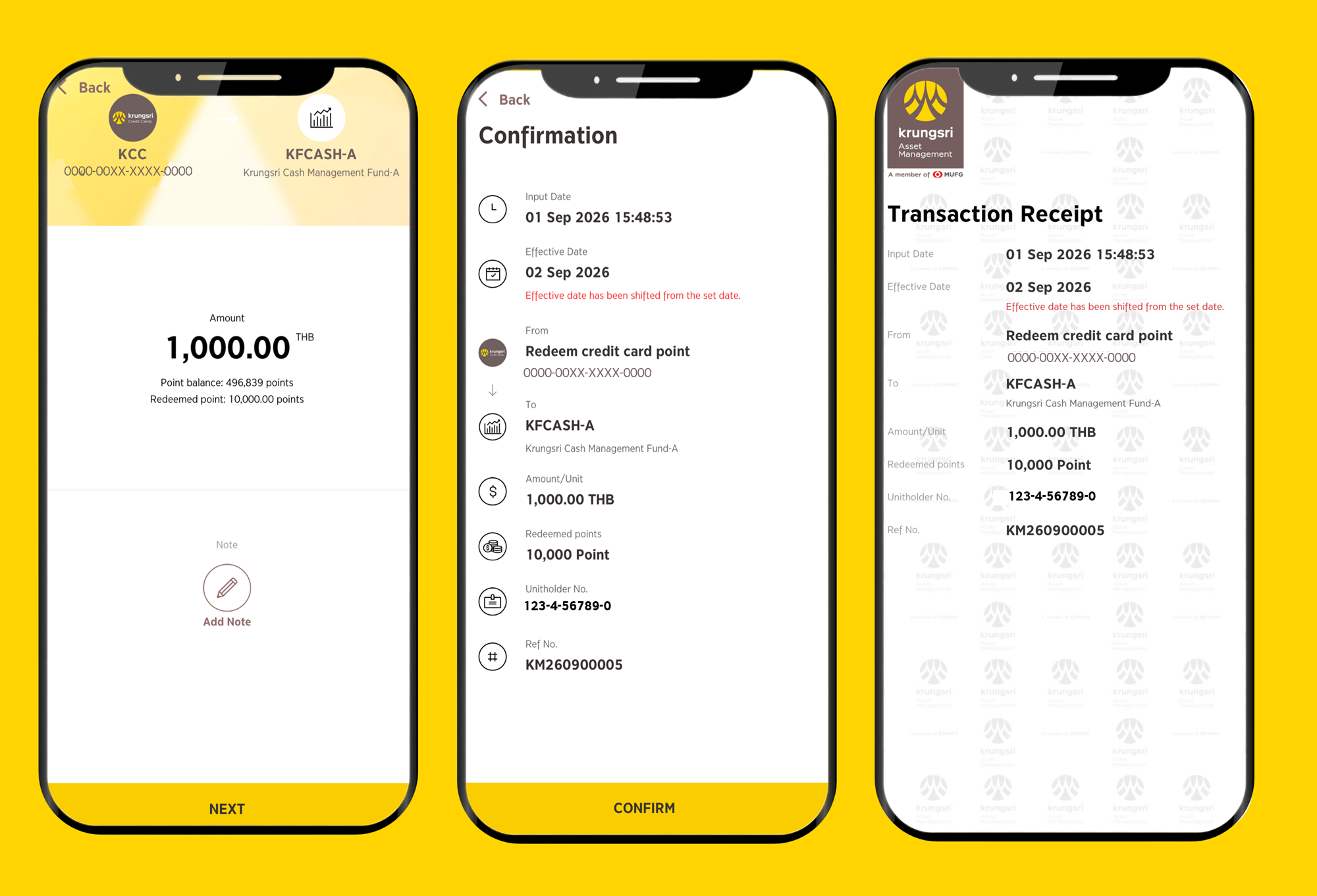
1.2.2 Read the terms and conditions to redeem Credit Card Point for fund units' purchase, then enter the purchase amount or the number of points you wish to redeem. Points redemption transactions cannot be scheduled in advance.
Credit card purchase conditions are subject to the requirements specified for each fund type. For credit cards that support both credit limit payments and points redemption, you will need to select the payment method again.
1.2.3 Confirm the purchase amount and transaction. The system will display the transaction result and provide a transaction slip.
2. Purchasing Funds with a Credit Card on @ccess Online
2.1 Credit Card Payment
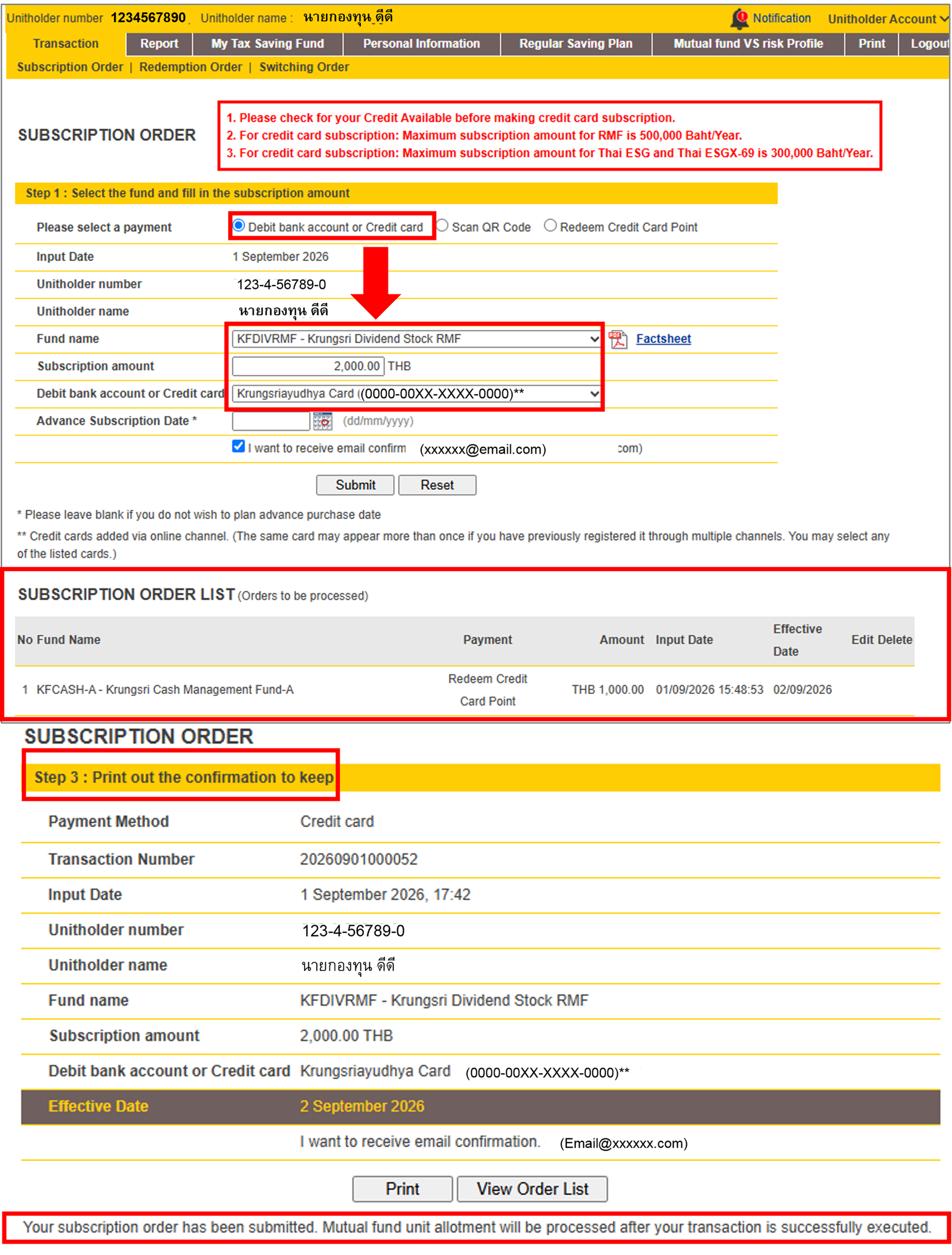
2.1.1 Go to “Transaction” > “Subscription Order”, select “Debit Bank Account or Credit Card,” and enter the required information, including the fund, purchase amount, and credit card. If you would like to schedule the transaction in advance, specify the transaction date. Read the transaction warning, then click “Confirm.”
2.1.2 Review the transaction details and click “Confirm.”
2.2 Point Redemption
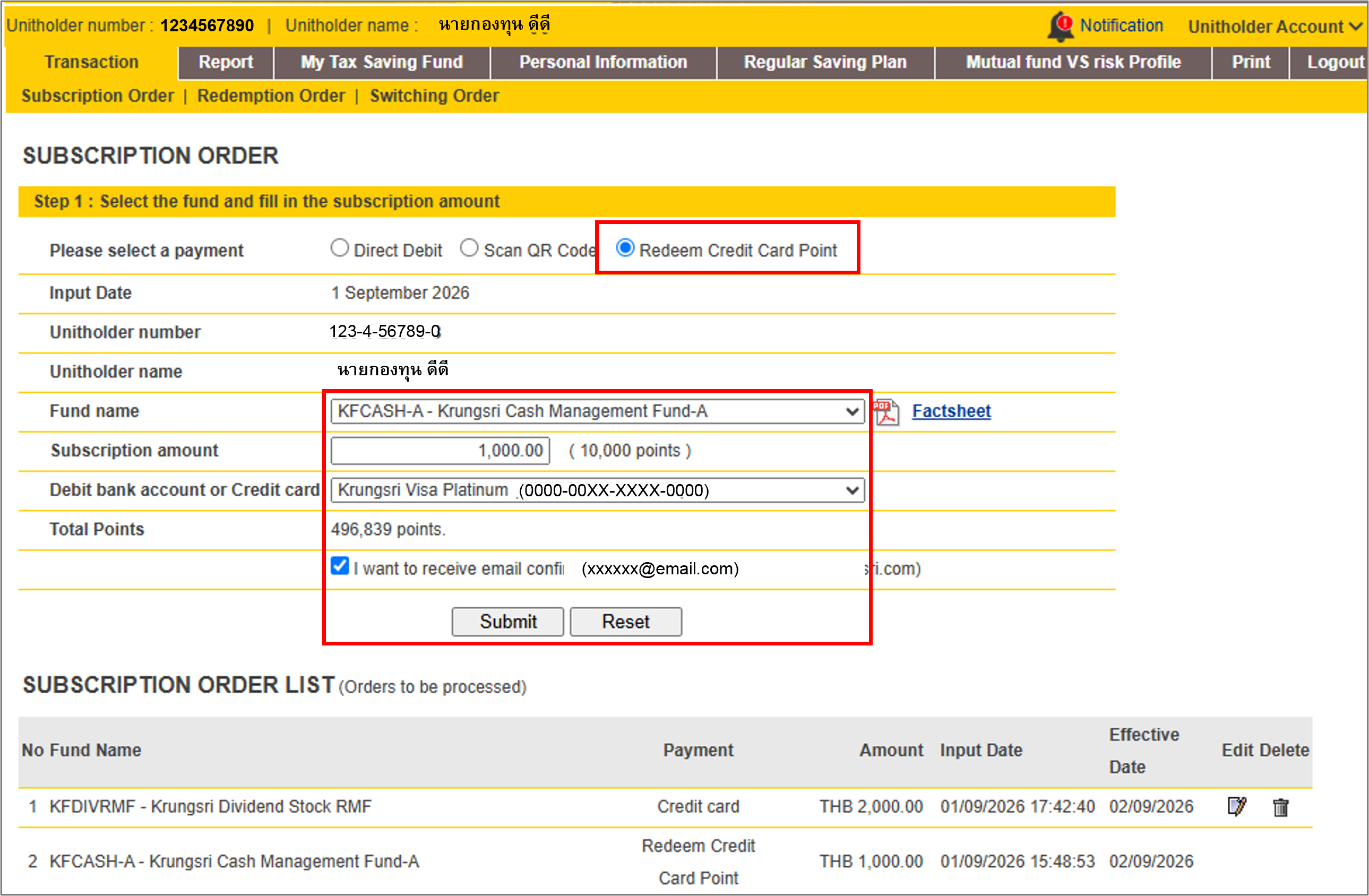
2.2.1 Go to “Transaction” > “Subscription Order” and select “Redeem Credit Card Point.” Read the transaction warning and click “Confirm.” Then, select the fund, enter the purchase amount, and select the credit card from which you wish to redeem points.
Once the purchase amount is entered, the system will calculate the number of points required for the purchase. Click “Confirm.”
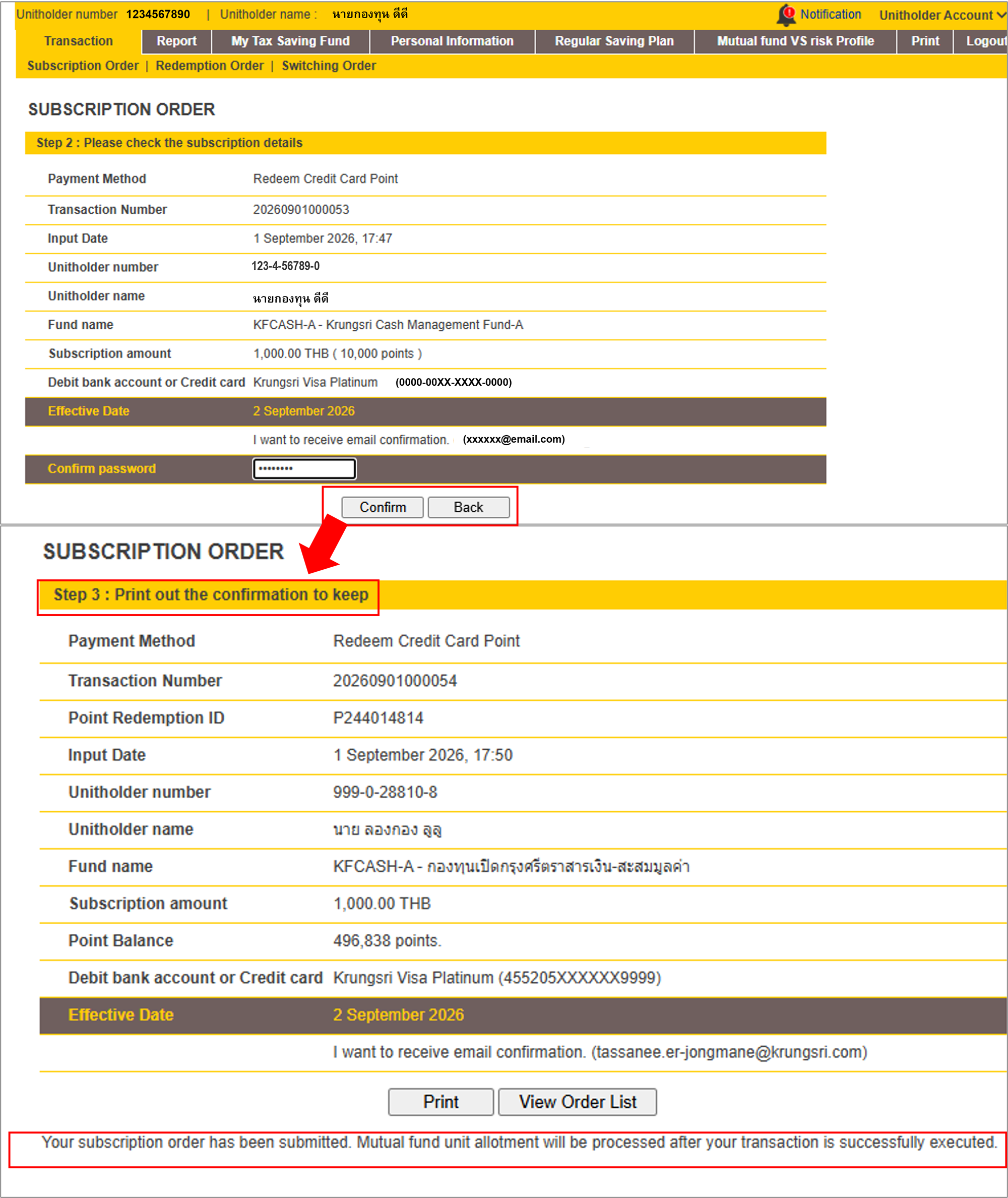
2.2.2 Review the transaction details to ensure they are correct. If the transaction is made outside the service hours, you will be required to enter your password before clicking “Confirm.” The system will display the points redemption transaction, and the successfully completed fund purchase transaction will be displayed below.
1.1 Credit Card Payment
1.1.1 From the “Subscription” menu, after selecting the desired unitholder number and fund, go to “Payment Method” and select “Payment using credit limit".
*Credit card payment conditions are subject to requirements specified for each fund type.
1.1.2. Enter the purchase amount. If you would like to schedule the transaction in advance, tap “Schedule”* to set the transaction date before confirming the transaction. Then, review the transaction details and confirm.
**For recurring transactions, you can set up a weekly or monthly recurring schedule and specify the period during which you would like the transactions to be made.
1.2 Points Redemption
1.2.1 From the “Subscription” menu, after selecting the desired unitholder number and fund, select a credit card marked with the "Redeem Points" icon as the payment account.
1.2.2 Read the terms and conditions to redeem Credit Card Point for fund units' purchase, then enter the purchase amount or the number of points you wish to redeem. Points redemption transactions cannot be scheduled in advance.
Credit card purchase conditions are subject to the requirements specified for each fund type. For credit cards that support both credit limit payments and points redemption, you will need to select the payment method again.
1.2.3 Confirm the purchase amount and transaction. The system will display the transaction result and provide a transaction slip.
2. Purchasing Funds with a Credit Card on @ccess Online
2.1 Credit Card Payment
2.1.1 Go to “Transaction” > “Subscription Order”, select “Debit Bank Account or Credit Card,” and enter the required information, including the fund, purchase amount, and credit card. If you would like to schedule the transaction in advance, specify the transaction date. Read the transaction warning, then click “Confirm.”
2.1.2 Review the transaction details and click “Confirm.”
2.2 Point Redemption
2.2.1 Go to “Transaction” > “Subscription Order” and select “Redeem Credit Card Point.” Read the transaction warning and click “Confirm.” Then, select the fund, enter the purchase amount, and select the credit card from which you wish to redeem points.
Once the purchase amount is entered, the system will calculate the number of points required for the purchase. Click “Confirm.”
2.2.2 Review the transaction details to ensure they are correct. If the transaction is made outside the service hours, you will be required to enter your password before clicking “Confirm.” The system will display the points redemption transaction, and the successfully completed fund purchase transaction will be displayed below.
Download @ccess Mobile App
Download & register |
Available on IOS & Android |
 |
Click here to download  |